Using Image Grabber II.NET
Image Grabber II.NET is available to download HERE
Download and install Image Grabber II.NET, if you need the .NET download you will be prompted to download and install it.
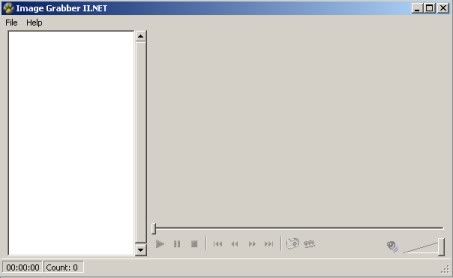
Launch Image Grabber II.NET
This is the initial loading screen.
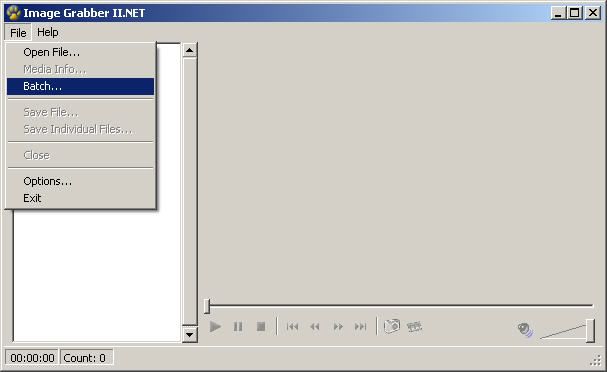
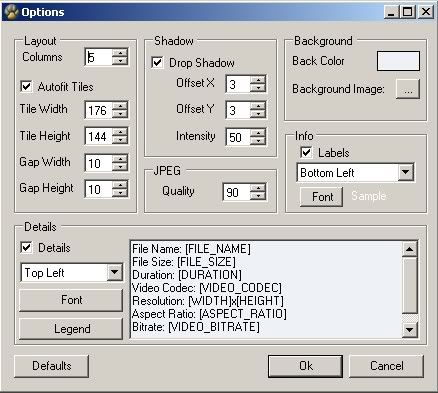
Adjust the options if need be by selecting File then Options
The custom settings I have used are:-
Tile Width - 176
Tile Height - 144
Custom Details:-
File Name: [FILE_NAME]
File Size: [FILE_SIZE]
Duration: [DURATION]
Video Codec: [VIDEO_CODEC]
Resolution: [WIDTH]x[HEIGHT]
Aspect Ratio: [ASPECT_RATIO]
Bitrate: [VIDEO_BITRATE]
The Picture below shows the Options.
LOAD A VIDEO
Select file then open to load the video you wish to create a screen grabs picture of.
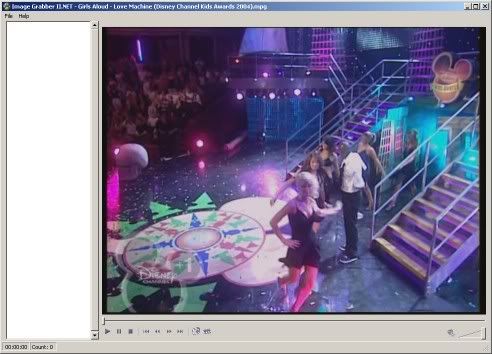
The file will start to play. Press stop.
This is the view of a loaded video.
GRAB FRAMES
Select the multiple grab icon. It is the button to the right of the Camera button.
You then will be asked.
Number Of Frames To Extract:
I selected 20, then press OK.
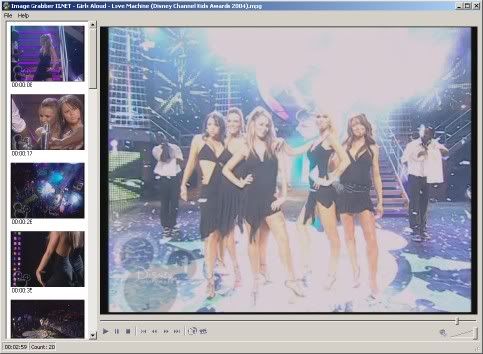
The software will then capture the number of required frames.
Shown below is the view after frame capture.
Then select File then Save File
This will load a preview of screen grab picture, shown below.
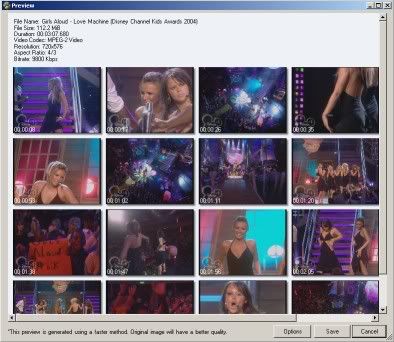
Then press the save button at the bottom of the preview picture.
Here is the finished screen grab tumbnail picture picture.

Image Grabber II.NET is available to download HERE
Download and install Image Grabber II.NET, if you need the .NET download you will be prompted to download and install it.
Launch Image Grabber II.NET
This is the initial loading screen.
Adjust the options if need be by selecting File then Options
The custom settings I have used are:-
Tile Width - 176
Tile Height - 144
Custom Details:-
File Name: [FILE_NAME]
File Size: [FILE_SIZE]
Duration: [DURATION]
Video Codec: [VIDEO_CODEC]
Resolution: [WIDTH]x[HEIGHT]
Aspect Ratio: [ASPECT_RATIO]
Bitrate: [VIDEO_BITRATE]
The Picture below shows the Options.
LOAD A VIDEO
Select file then open to load the video you wish to create a screen grabs picture of.
The file will start to play. Press stop.
This is the view of a loaded video.
GRAB FRAMES
Select the multiple grab icon. It is the button to the right of the Camera button.
You then will be asked.
Number Of Frames To Extract:
I selected 20, then press OK.
The software will then capture the number of required frames.
Shown below is the view after frame capture.
Then select File then Save File
This will load a preview of screen grab picture, shown below.
Then press the save button at the bottom of the preview picture.
Here is the finished screen grab tumbnail picture picture.
* This post has been modified
by brownell
: 15 years ago